
Raster vs Vector Images
Understand pixels and paths, how scaling changes each kind of image, and which format fits photographs, logos, diagrams and web graphics.
Updated September 5, 2026
On this page
Pixels and paths solve different problems
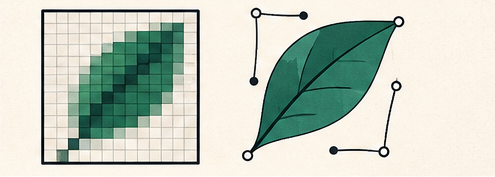
A raster image stores a grid of pixels. Each pixel records color information at a fixed position. Photographs, screenshots and painted textures are naturally represented this way.
A vector image describes shapes with points, curves, fills and strokes. The renderer calculates pixels at display time, so a clean vector logo can scale from a small icon to a sign without becoming blocky.
Resolution and scaling
Raster dimensions are explicit: 1200 by 800 pixels, for example. Enlarging beyond the available detail requires interpolation. The software can smooth the result, but it cannot reliably recreate every original texture or edge.
Vector geometry is resolution independent, but effects inside a vector file may not be. Embedded photographs, raster filters and textures still have pixel limits. Fonts also need to be available or converted appropriately.
Best uses for raster images
- photographs and camera captures;
- screenshots;
- digital painting with complex texture;
- generated imagery;
- pixel-level masks and effects;
- final exports for systems that do not render SVG.
Common raster formats include JPEG, PNG, WebP and AVIF. Choose among them based on compression, transparency, compatibility and editing needs.
Best uses for vector images
- logos and brand marks;
- icons and interface symbols;
- charts, maps and diagrams;
- typography-based artwork;
- simple illustrations with flat shapes;
- files that must be resized or recolored frequently.
SVG is the main vector format for the web. Design applications may also use PDF, EPS or their own editable formats.
Converting vector to raster
Rendering SVG to PNG is deterministic once you choose dimensions, fonts and a background. Decide the output width and height before export. Use a transparent background only when the destination supports alpha.
For a sharp result, render directly at the final required size or at a planned high-density multiple. Avoid exporting a tiny PNG and enlarging it later.
Converting raster to vector
Changing .png to .svg does not create vector paths. Automatic tracing analyzes edges and colors, then approximates them with shapes. It can work well for a high-contrast logo but usually produces too many points and awkward shapes for a photograph.
After tracing, inspect corners, holes, overlapping shapes and small text. A manually rebuilt logo is often cleaner and easier to maintain than an automatic trace.
SVG safety and accessibility
SVG can contain links, styles and scripts, so treat untrusted files as active content rather than harmless pixels. Sanitize user uploads before embedding them in a page. When an SVG conveys information, provide an accessible name or surrounding text appropriate to how it is embedded.
Choose by the source, not the destination name
Ask:
- Is the content photographic or geometric?
- Must it scale to many sizes?
- Does it need transparent edges?
- Will people edit individual shapes later?
- What formats does the destination accept?
Keep the most editable source. Export raster delivery copies when a platform needs them, and keep vector artwork as vector for future sizes and color changes.