
Change an object’s color
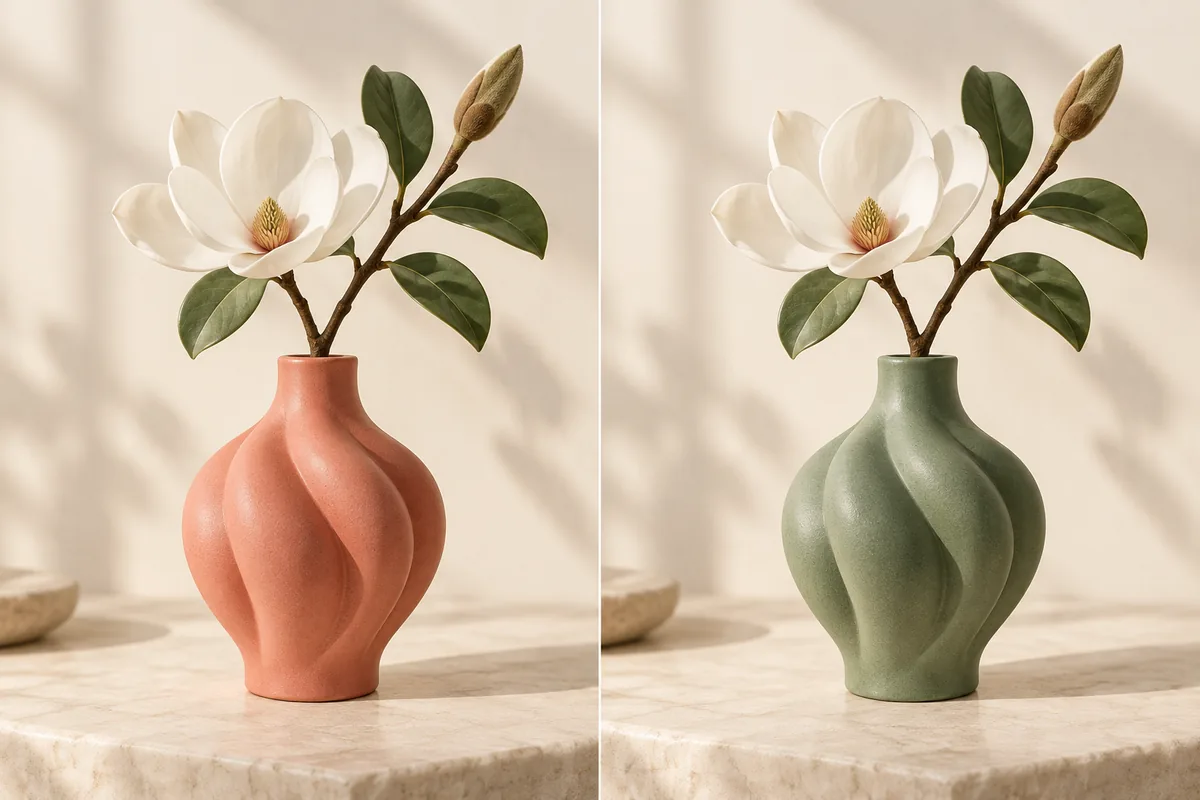
Change the ceramic vase from coral to sage green. Preserve its shape, the flower, the lighting and the background.
Upload an image and describe the change you want. Qwen Image Edit can modify objects, appearance and text within an existing image. Free use is subject to Hugging Face GPU quotas.
Qwen Image Edit adapts the Qwen Image model for instruction-based image editing. It uses the input image alongside a text instruction to change visual content and appearance, including English and Chinese lettering.
The original official demo on this page accepts one input image. It includes Rewrite prompt, a seed, guidance and inference steps. Later Qwen Image Edit releases have separate demos and should not be confused with this version.
Name the object to change, describe the desired result and state what should remain unchanged. For text edits, quote both the existing text and the replacement. Review small details because an edit can alter nearby parts of the image.
Use Input Image to select the picture you want to edit. Start with an image whose main subject is clearly visible.
Enter the edit in Prompt. Name the target object or wording, the replacement, and any features to preserve. Review Rewrite prompt in Advanced Settings.
Select Edit! Compare the result with the original image, then download it or refine the instruction.
Upload a suitable source image first. These instructions describe edits to that image; they are not text-only generation prompts.
Change the ceramic vase from coral to sage green. Preserve its shape, the flower, the lighting and the background.
Replace the text "OPEN" on the sign with "WELCOME". Keep the sign’s position, lettering style and the rest of the image unchanged.
Replace the background with a pale cream studio wall. Keep the main product, its proportions and its original color unchanged, with a soft contact shadow.
Inputs, generation settings, account requirements and troubleshooting.
The public demo can be used within its Hugging Face GPU allowance. Free use is limited by the hosting provider’s quotas and shared capacity; it is not unlimited. Image Toolkit does not sell credits for this embedded tool.
Yes. This demo requires an input image and an edit instruction. For generation from text alone, use Qwen Image.
Text editing is a supported capability. Quote the original and replacement wording, and check the output for spelling, font and layout changes.
No. It embeds the original Qwen/Qwen-Image-Edit Space, with one input-image field. The numbered releases are distinct models.
No Image Toolkit account or API key is needed to open the tool. Hugging Face may require sign-in to generate images and controls the available GPU allowance. Follow the access message inside the demo.
The Space may be starting, busy or temporarily unavailable, or your GPU allowance may be exhausted. Check the message inside the tool. Select Reload if the frame is blank; wait for the provider’s quota reset if your allowance has run out.
They are sent to the Qwen/Qwen-Image-Edit Space on Hugging Face. The host’s processing and retention rules apply. This tool does not process your inputs locally in your browser.
Browse all free AI image tools