Skip to content

GPT Image 2.6

Explore images, edits and animated GIFs.

See what Flare and Sunburst can make. Inspect official examples, compare the details, and prepare a prompt for your next image.

An example gallery and prompt builder. Generation on Image Toolkit is not connected yet.

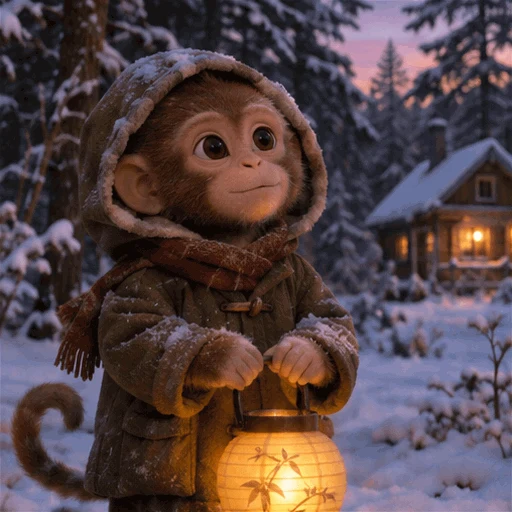
A monkey in a winter coat lifts a glowing lantern beside a snowy cabin. Official GPT Image 2.6 Sunburst example.
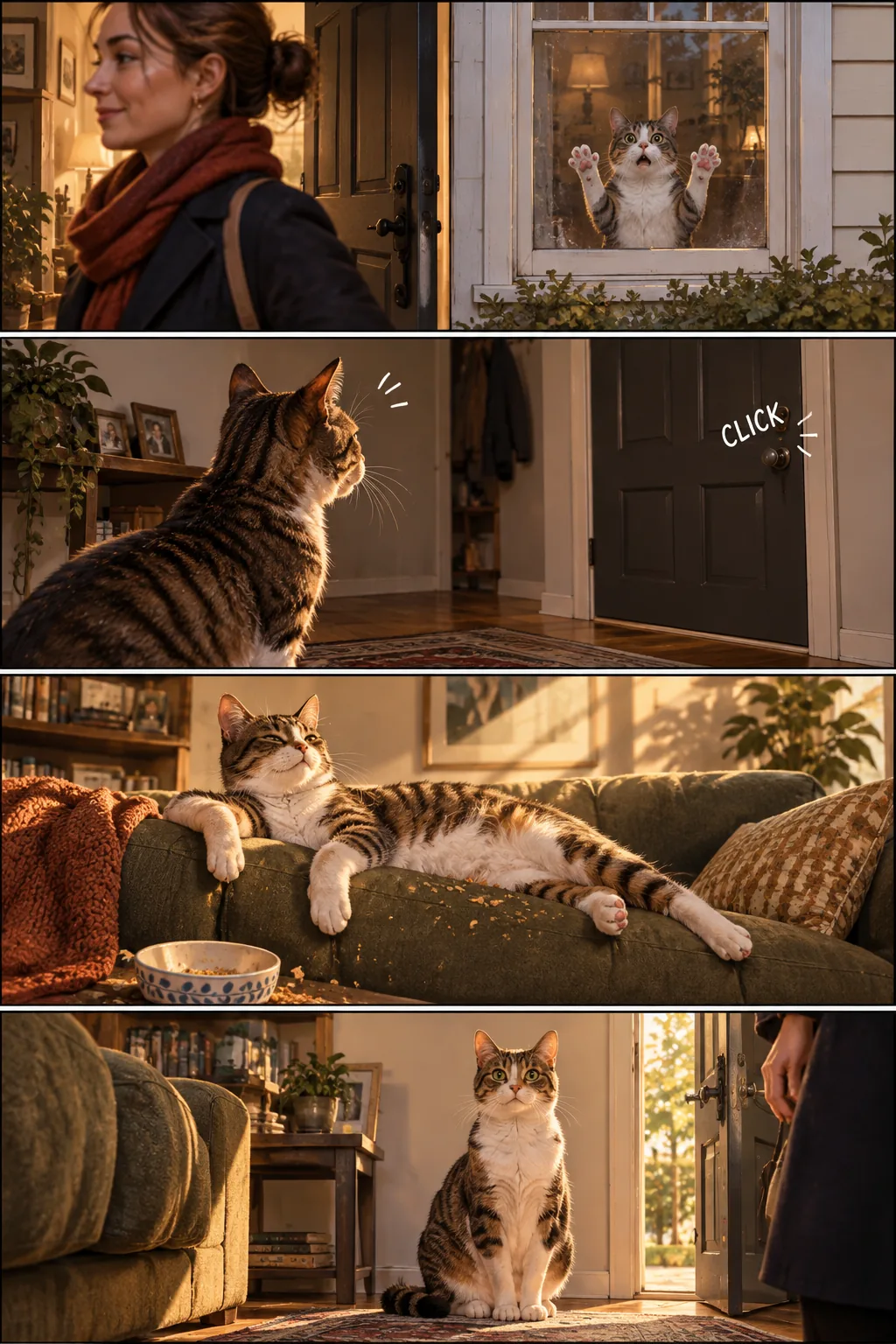
A little light. A short loop.GPT Image 2.6 Sunburst · 9 frames · 1.8 seconds

Real examples. Useful starting points.

Open the full-size images, inspect the SVG, or watch the GIF. Each example links back to OpenAI’s documentation.

Choose the model for the task.

Both variants support image generation, editing, transparency, GIF and SVG output. The difference is where to start testing.

Flare

Start here when response time matters: visual exploration, everyday image creation and repeated drafts.

Flare model details

Sunburst

Start here for demanding detail, structured compositions or edits where preserving specific elements matters.

Sunburst model details

More planning is a choice.

Complexity controls how much the model plans before rendering. Quality controls rendering detail. They are separate settings.

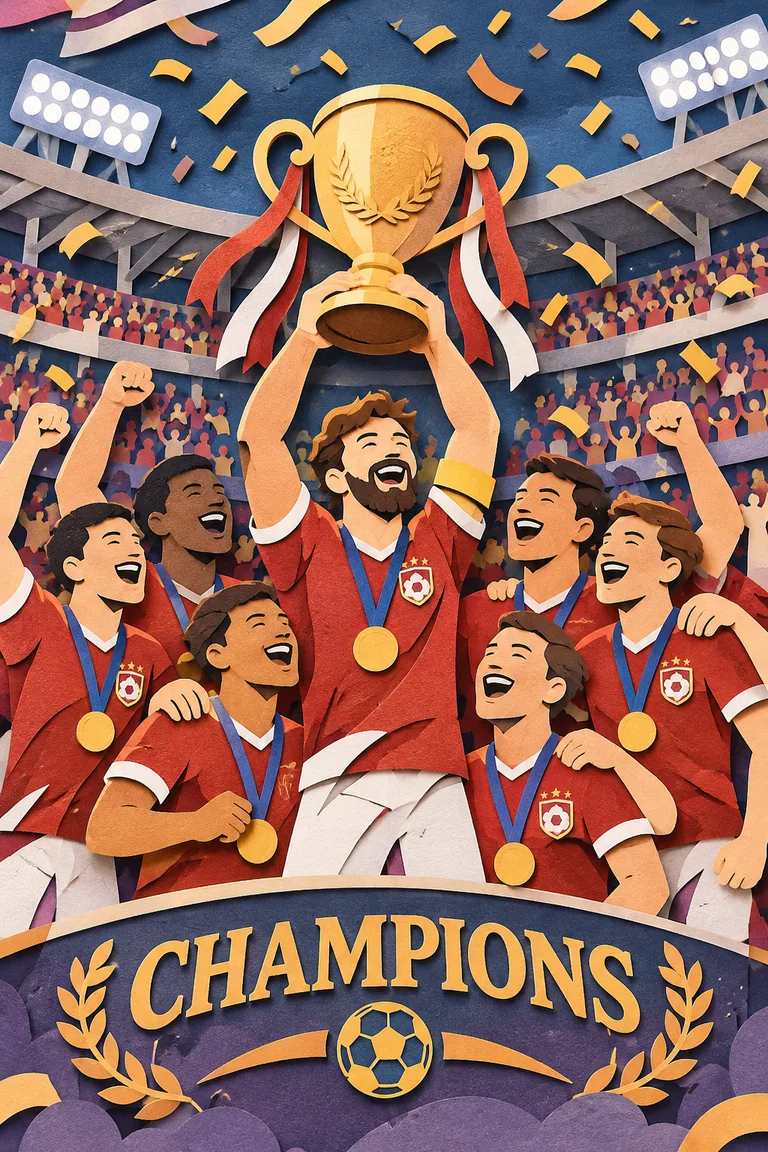
These three official Sunburst outputs use the same prompt and medium quality. Change the complexity to compare the trophy, uniforms and sign placement.

Higher complexity can help a difficult layout, but can also take longer or introduce changes. Compare the result with what you actually need.

Read about complexity
Paper-cut football celebration at Medium complexity, generated with GPT Image 2.6 Sunburst.
A different trophy treatment, uniforms and sign placement, with the same rendering quality setting.

Show what to change. Say what to keep.

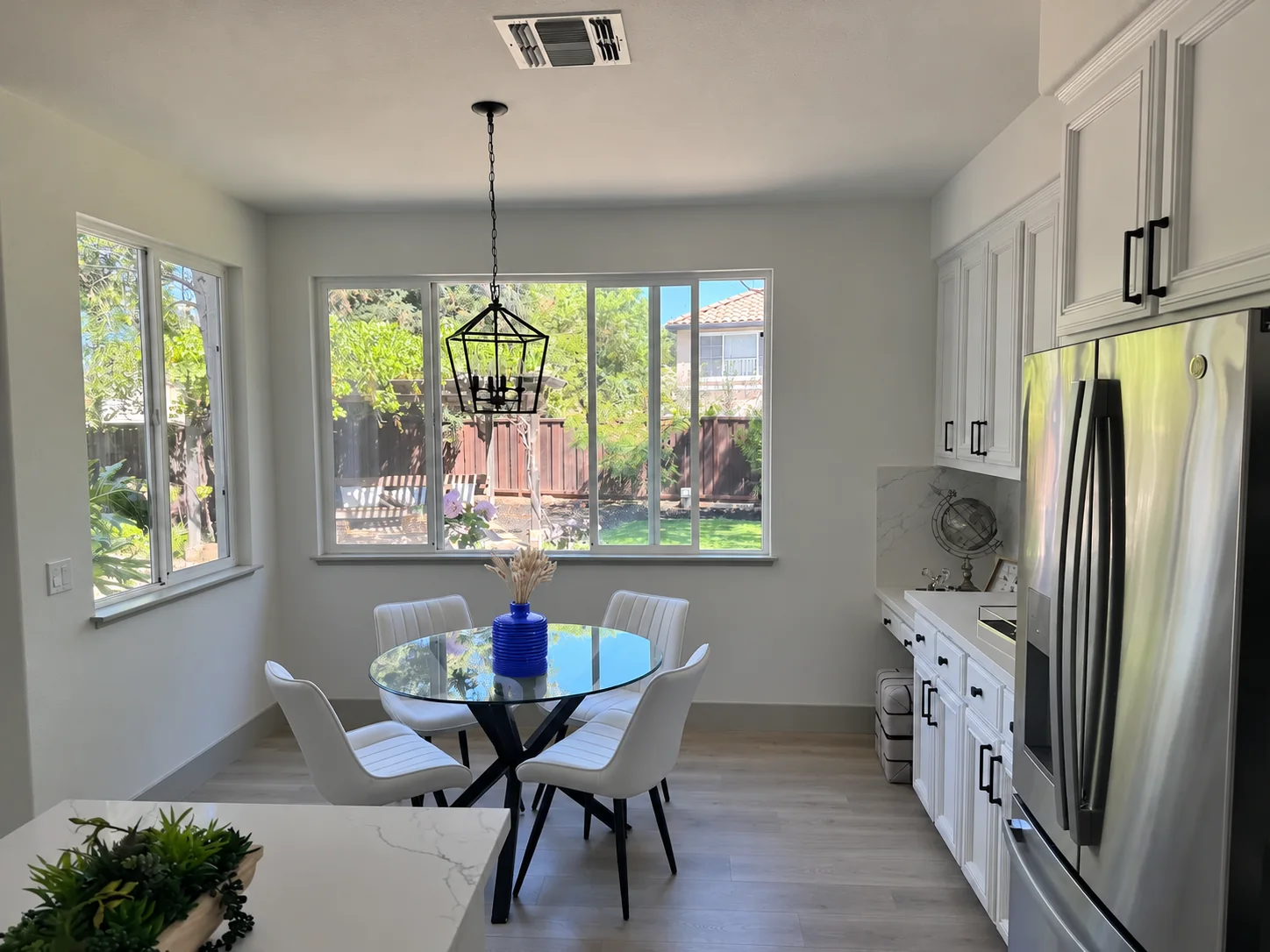
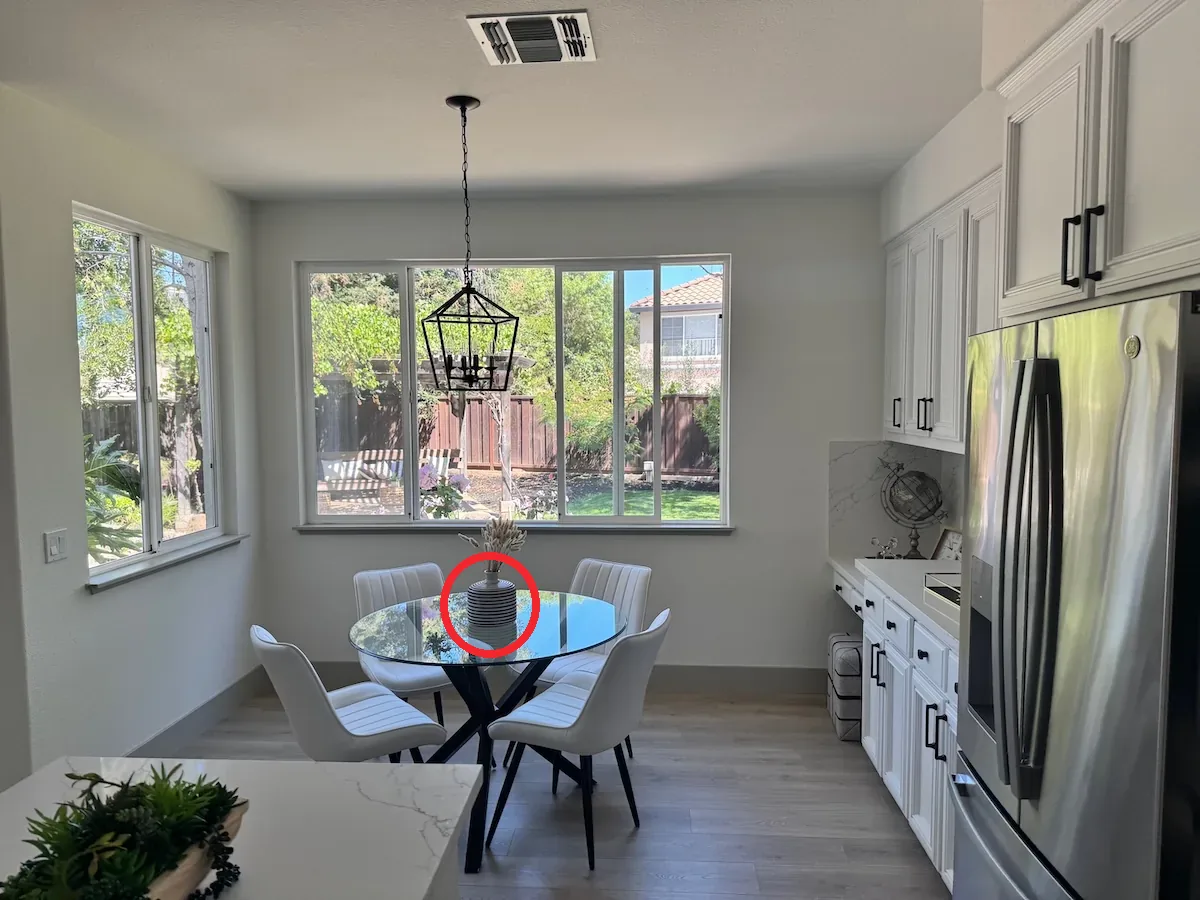
Markup-guided editing accepts an annotation overlay with the source image. In this official example, a circle identifies the vase to recolor.

Drag the divider to compare the marked input with Sunburst’s result. Inspect the surrounding room as well as the vase.

View the source example
GPT Image 2.6 Sunburst edit with a blue vase and the annotation removedKitchen photograph with a red circle marking the vase on the table
Official OpenAI markup-edit example. The annotation identifies the target; it is not part of the finished image.

Start with a clear brief.

Choose a starter above, or write your own. Keep the subject, constraints and intended output together.

Name the subject, composition, lighting and any exact text. Include what to leave out.

A few things to know.

Can I generate with GPT Image 2.6 here?

This page provides official examples and a working prompt builder. Image Toolkit has not connected GPT Image 2.6 generation yet. You can copy your prompt or save a brief for a service that supports the model. No credits are charged here.

Are these images actually from GPT Image 2.6?

Yes. Every displayed model example comes from OpenAI’s GPT Image 2.6 documentation, with a link to its source and the model variant identified. The starter prompts are written by Image Toolkit; they are not the original prompts and do not reproduce the examples exactly.

Can GPT Image 2.6 create an animated GIF?

Yes. The Image API supports GIF generation with 2–64 frames and 20–2000 milliseconds per frame. The default is 9 frames at 200 milliseconds each. Frame size and count must fit the model’s request limits. GIF output is not supported by the image edit endpoint.

How is complexity different from quality?

Complexity controls planning before rendering. Quality controls rendering detail. Both Flare and Sunburst accept low, medium or high complexity, with high as the default. More planning can help difficult compositions, but can also take longer or change details you wanted to preserve.

Does SVG output contain real vector artwork?

GPT Image 2.6 can generate SVG through the Image API. The bakery example on this page contains vector paths and transparency. Inspect any generated SVG before publishing it; text, path quality and suitability for a particular use can vary.

What should I check before using a result?

Review text, factual claims, fine detail, transparent edges and anything the prompt asked to preserve. For animation, check each frame and the transition back to the first. Keep source files and follow the disclosure requirements of the destination where you publish.

Sources and example credits

Model details checked against OpenAI’s documentation on November 5, 2026. Original example artwork belongs to its respective owner and is credited to OpenAI. Our starter prompts are separate from the original demonstrations.