
Keep the page in view
Open images in a side panel beside the current tab. Check what you found while keeping the original page close by.
A whole page of images, in one side panel. Find the ones you want, preview them, and save a selection together without losing your place.
Install in Chrome on your computer.
Listed in the Chrome Web Store as: Side panel image download
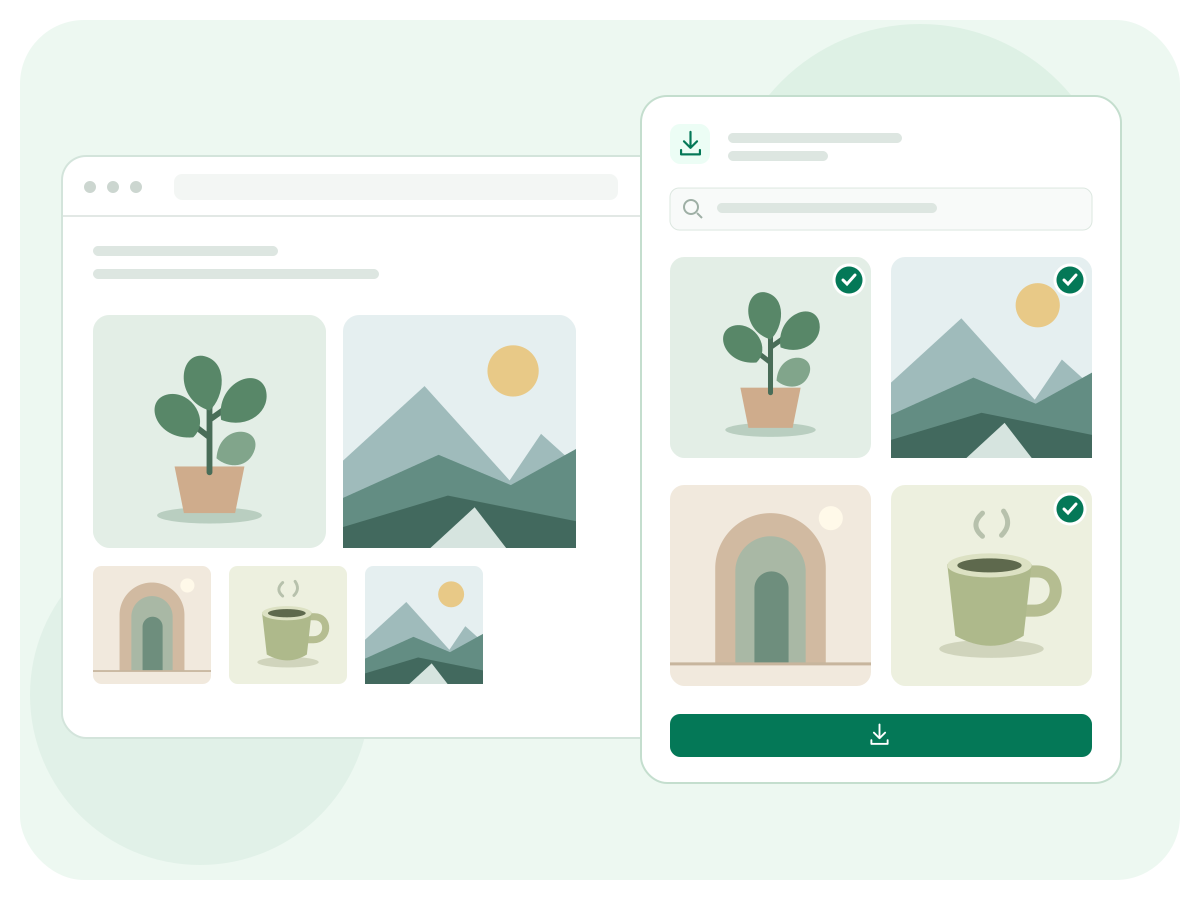
Open images in a side panel beside the current tab. Check what you found while keeping the original page close by.
Search image URLs or alt text, filter by file type, and sort by size or width. Preview candidates before saving.
Pick the images you need or use Download All for the current collection. Chrome handles the downloads to your device.
Add the extension from the Chrome Web Store. Open a webpage containing images and let them load.
Select the extension in Chrome’s toolbar. Fetch the page images, then search, sort or preview the collection.
Select individual images or the full collection. Use the download action and find the files in Chrome’s downloads.
Open the extension’s side panel on that page and fetch its images. Select the files you want, then use the selected-images download action. Download All saves the collection exposed to the extension.
The panel includes a type filter and sorting by size or width, plus search for image URLs and alt text. This helps you narrow a busy collection and inspect larger candidates before downloading.
Scroll the page to load images that appear later, then fetch the collection again. Browser internal pages, restricted resources and some embedded content cannot be read like ordinary webpage images.
No Image Toolkit account is needed for the extension’s image download workflow. Install it from the Chrome Web Store and use it on pages you can access in your browser.
Install these extensions in desktop Chrome. Chrome on Android and iOS does not run desktop Chrome Web Store extensions. You can still use Image Toolkit’s online editing tools on your phone.
Images are saved through Chrome to your device. These extensions do not send your images to an Image Toolkit processing server. The source website still receives the requests needed to load its images. See the extension privacy policy for details.
Compress, resize or convert your downloaded images with our browser tools.
Add the extension to Chrome and make it part of your browsing routine.